Product
Turn matter materials into work you can review.
Bring your instructions and documents. Prepare analysis and drafts, check the sources and keep the work together as the matter develops.
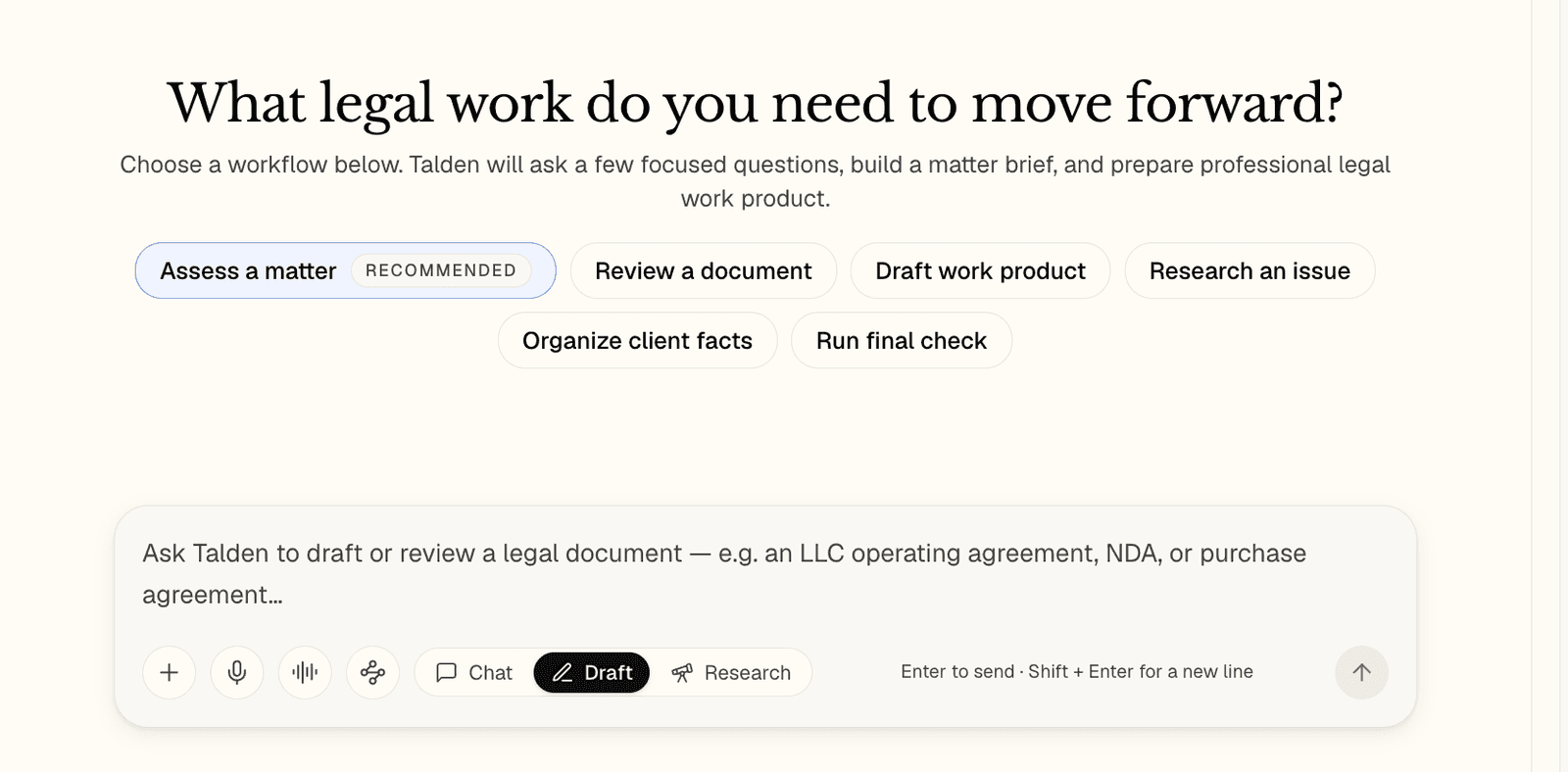
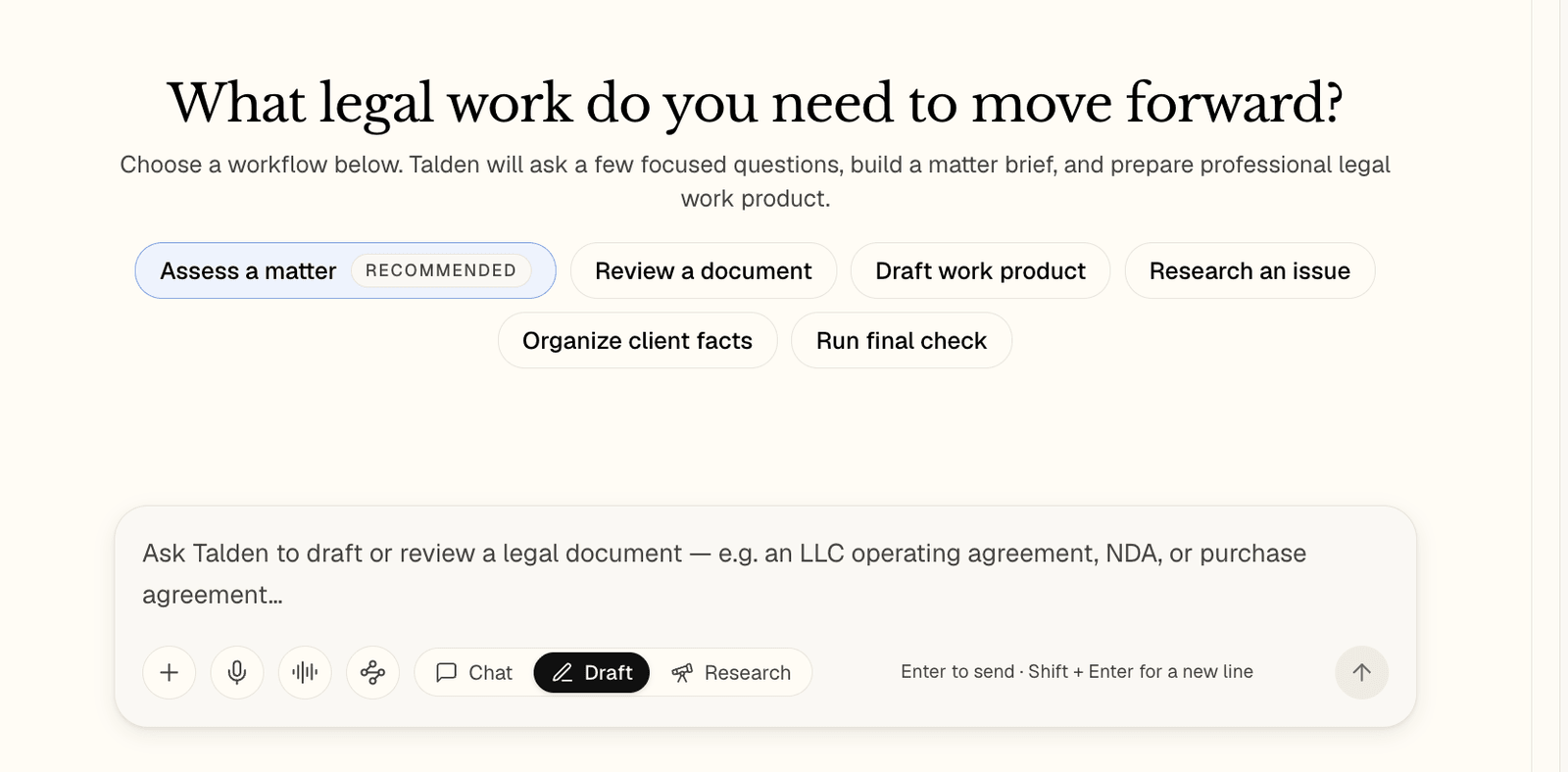
In the captured workspace
Guided starts include Assess a matter, Review a document and Research an issue. The composer shows Chat, Draft and Research, with Draft selected.
Give the work the right context.
Tell Talden what the client needs to decide. Add the role, priorities, deadline and deliverable for a contract review, or the facts, jurisdiction and relevant date for regulatory analysis. Keep those instructions beside the materials that guide the work.
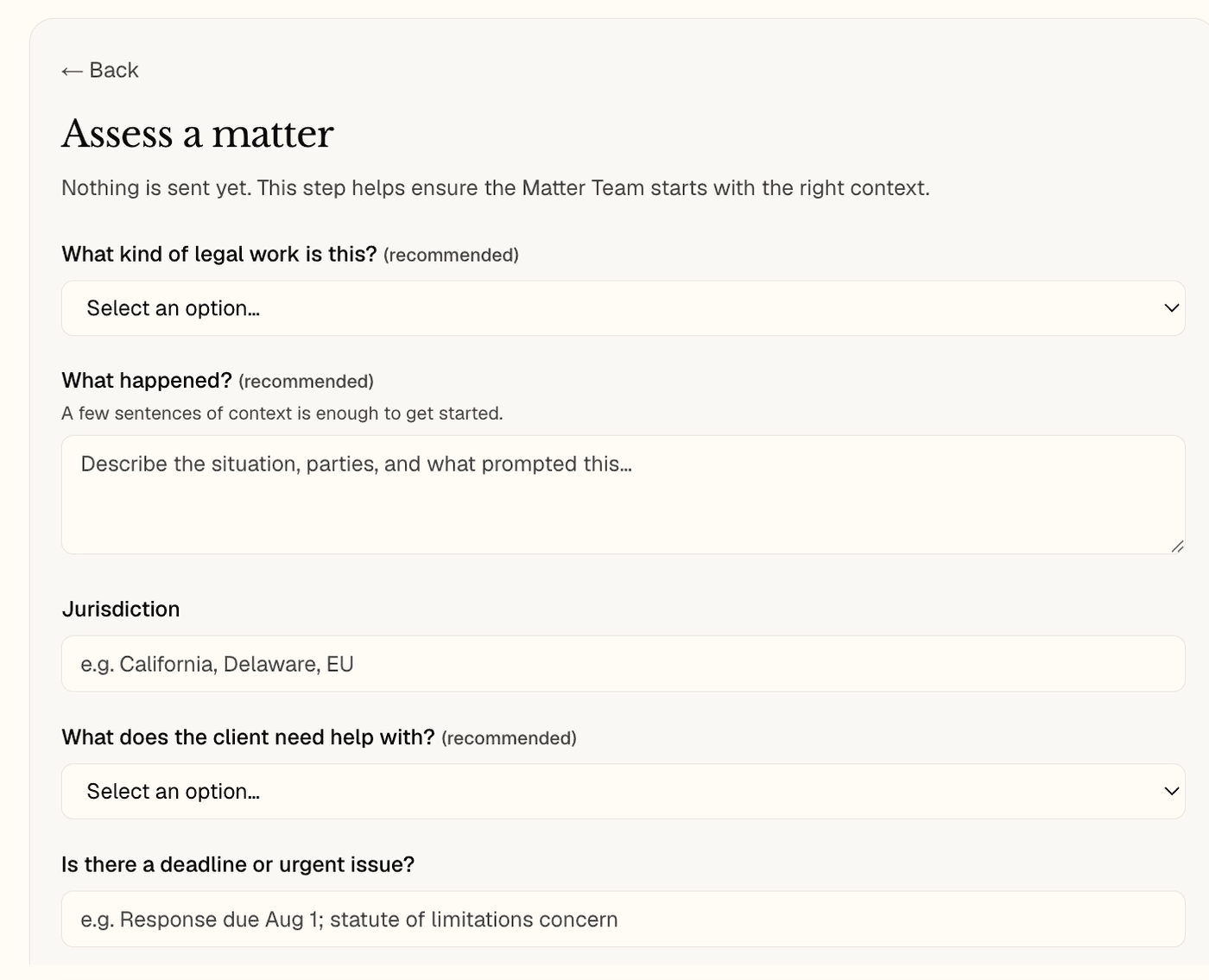
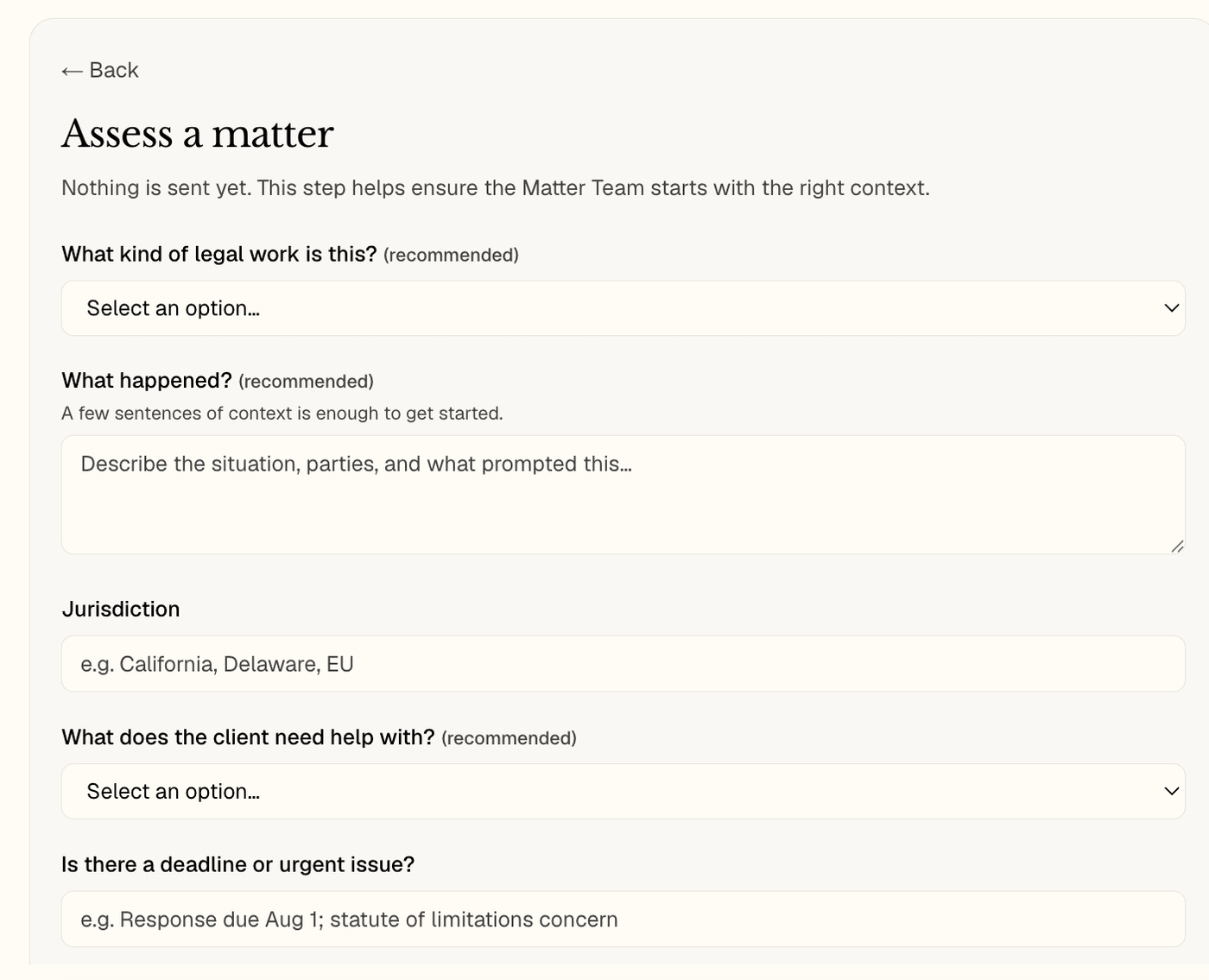
In the captured form, “What happened?” asks for the situation, parties and what prompted the request. Other fields ask for the type of work, jurisdiction, client’s need and deadline. The screen says “Nothing is sent yet.”
Review the reasoning behind the result.
Check each issue against the source materials. Examine the assumptions behind a conclusion and the information still missing. Use that review to decide what to rely on.
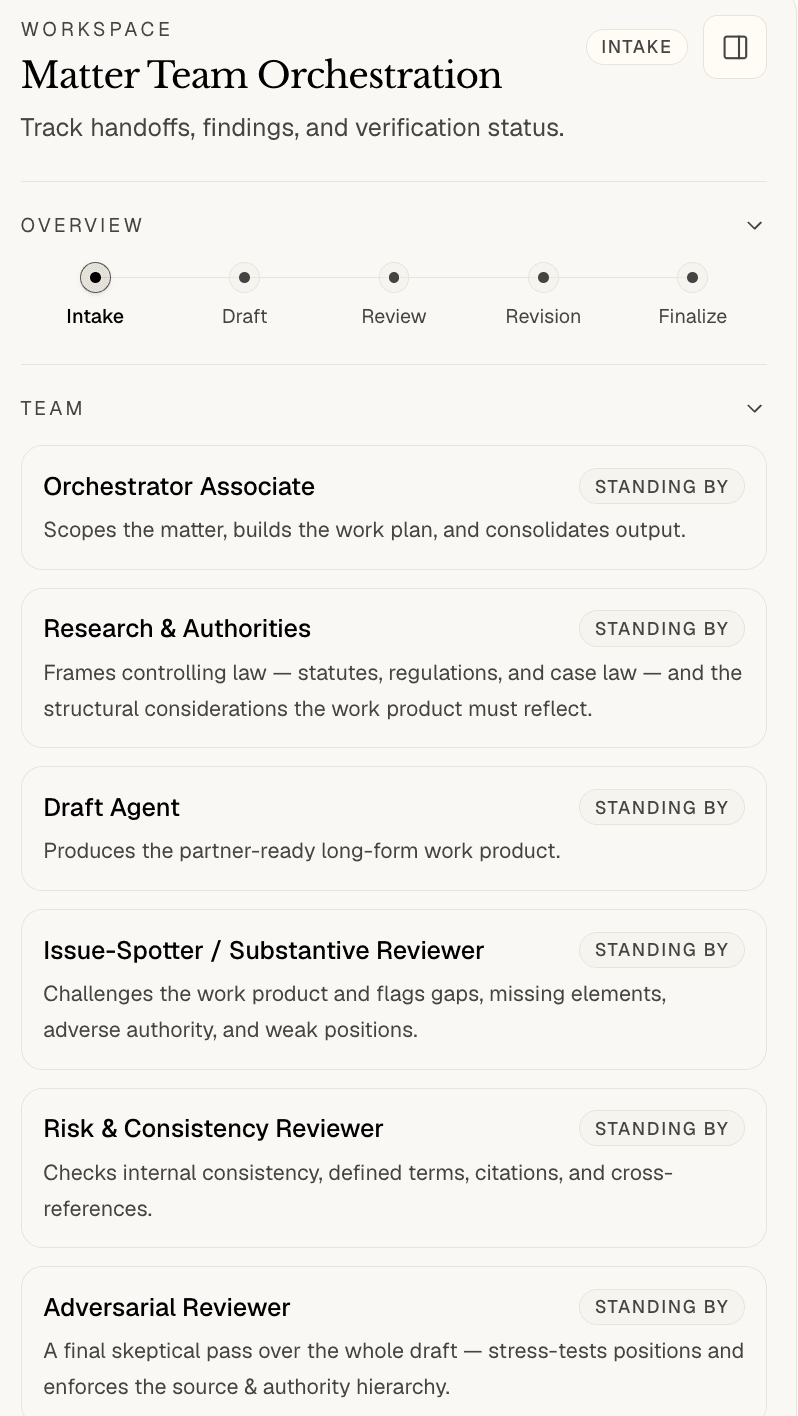
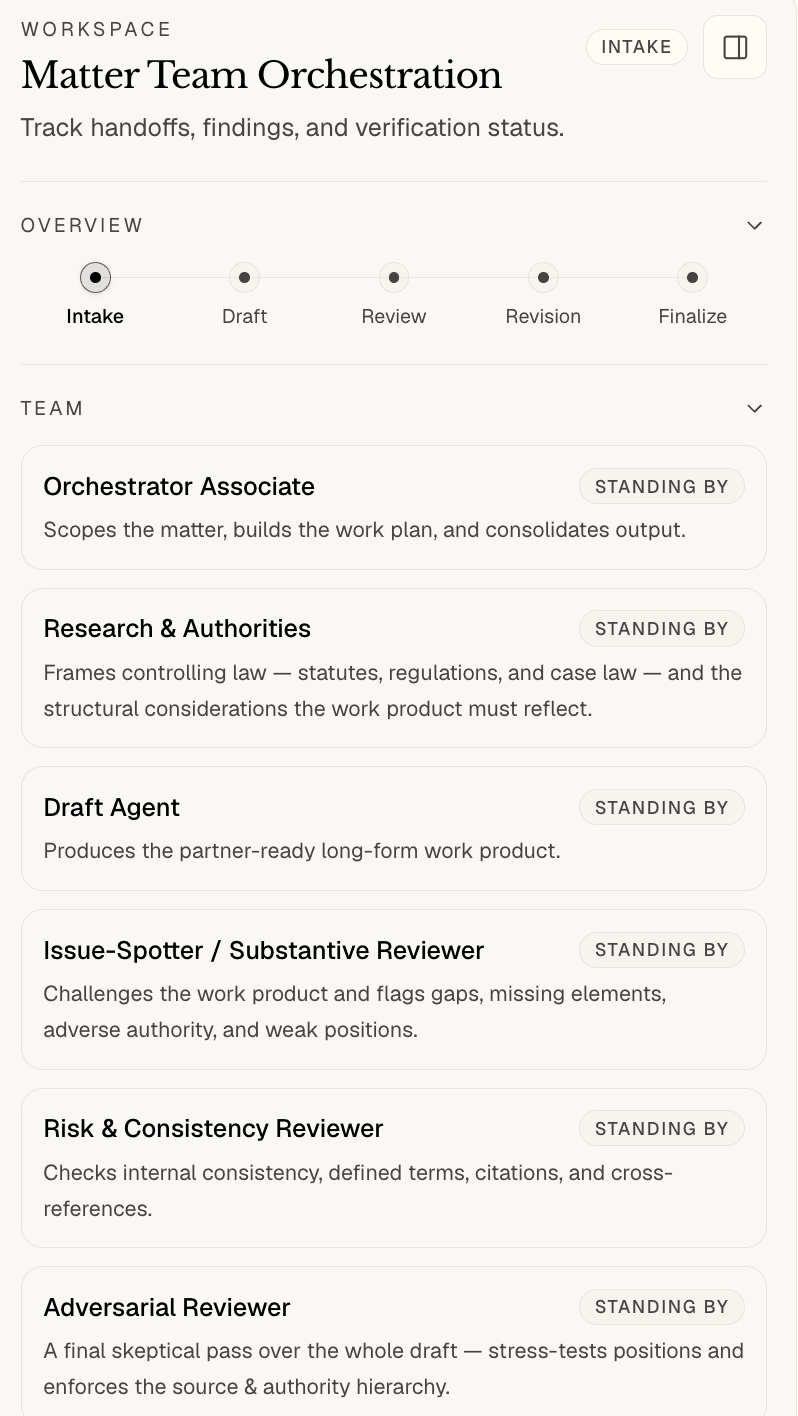
Source-to-output detail. The captured panel is at Intake. Its overview lists Intake, Draft, Review, Revision and Finalize; the specialists show “Standing by.” We add a finished result beside its source after the demonstration run has been reviewed.
Shape the next draft.
Refine the instruction, answer an open question or ask for another pass. Examine each suggestion and decide what to accept, change or reject.
Pick up where the matter left off.
Return to the conversation and saved work as the assignment develops. Keep the next question connected to the facts and decisions already in the matter.
Start with the essentials
- Which materials can I use?
- Add PDF, Word, Excel and PowerPoint documents, text files, images or pasted text, along with your instructions. Talden reads scanned pages with optical character recognition.
- How do I start an assignment?
- Type or dictate your instructions, or choose a guided start such as Assess a matter or Review a document. Use Chat for direct answers, Draft for a full document with internal review, or Research for work from public sources with citations.
- How do I export the work?
- Save work to the matter and export documents to Word or PDF. Export a revised document to Word with tracked changes for your review.
- Where does my work stay?
- Your work stays in your private workspace until you delete it. Read how Talden handles your work
Start with the materials you have
Add agreements, briefs and sources directly to the matter without connecting another account. If your account offers a connection to another service, Talden shows what it can read or do and the permissions it requests before you connect.